Monta is an innovative platform
that works differently from what you may be used to today.
The app will unlock a wide range of new features: scheduling charging sessions, starting or stopping sessions, real-time balance tracking, using a positive balance to reimburse charging sessions, and more. Many new possibilities, in other words.
Below, we walk you through the key points to help you get started. Of course, we remain at your disposal if you would like to discover more — feel free to contact us at migration@cenenergy.be.
1. Which mobile application should I download?
Go to the Play Store (Android) or App Store (iOS) and download our new mobile application.
2. How do I create an account?
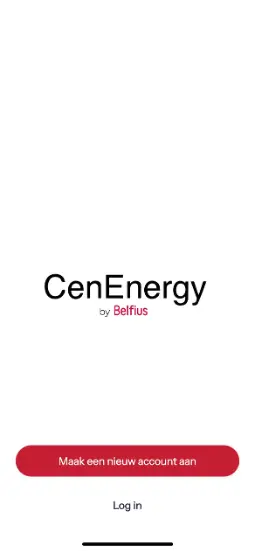
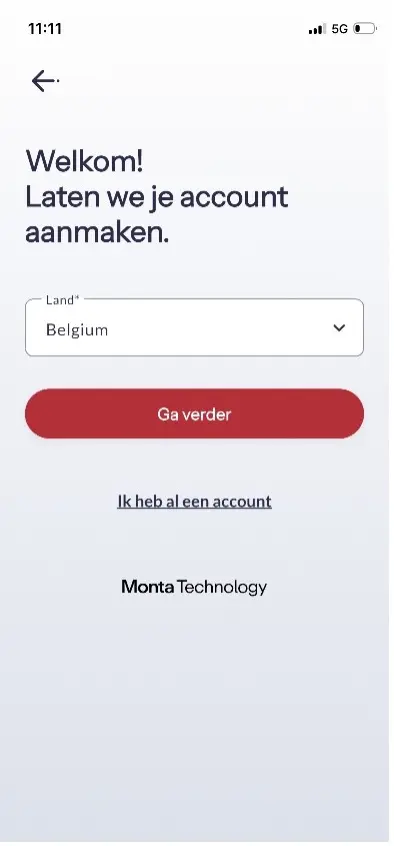
Open the mobile application, click Create a new account, select your country and click Continue.
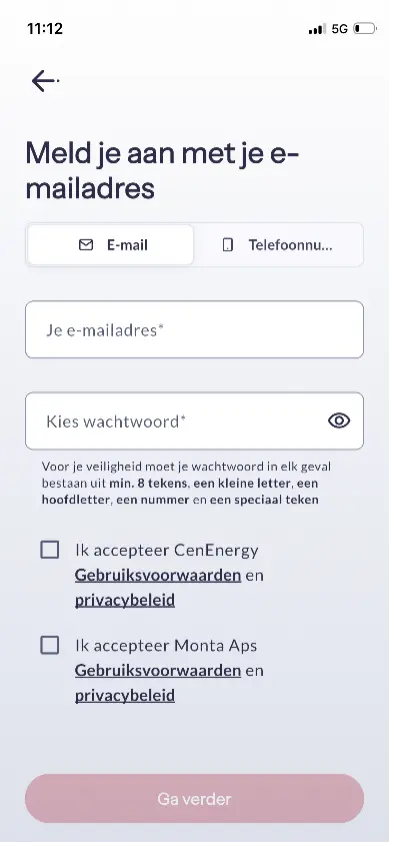
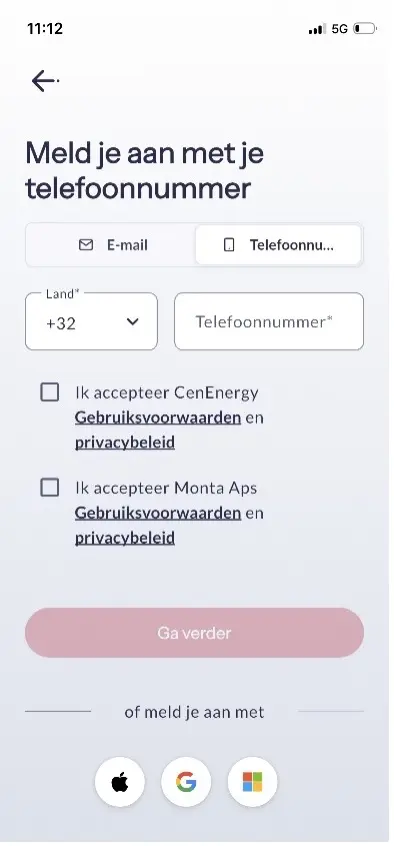
At the top, choose Email or Phone number, or sign in using an Apple, Google or Microsoft account, and complete the required steps.
To complete your profile, click Me in the bottom-right corner, go to Settings and click Profile.
3. How do I join a team?
There are two ways to join a team: by accepting an invitation or by using a code.
Contact your team administrator to receive one of these.
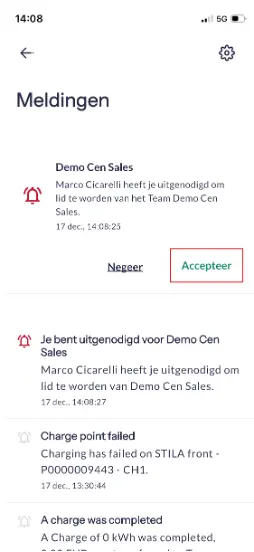
To accept an invitation, click Me in the bottom-right corner, go to Notifications and click Accept. You are now a member of the team.
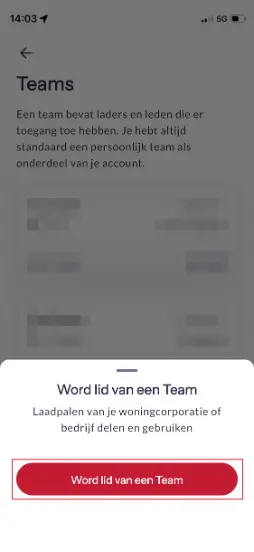
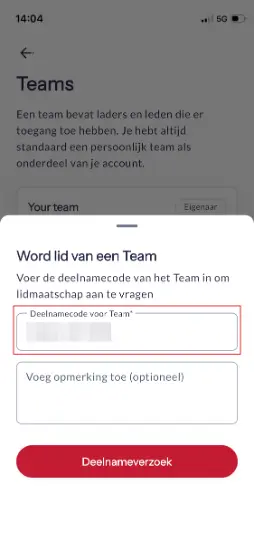
To use a code, click Me in the bottom-right corner, go to Teams and click Join a Team at the bottom. Click Join a Team again, enter your participation code and click Request to join. Your request is now pending with the administrator.
4. What is my Wallet?
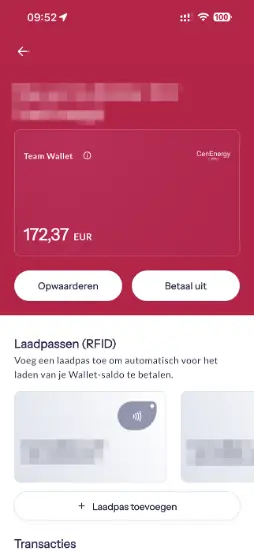
Your Wallet shows your balance. It is the sum of your income from charging sessions on your own charging stations, the associated transaction costs, and the costs of charging sessions on charging stations operated by other parties.
You can view your Wallet balance at any time.
5. How do I request charging reimbursements?
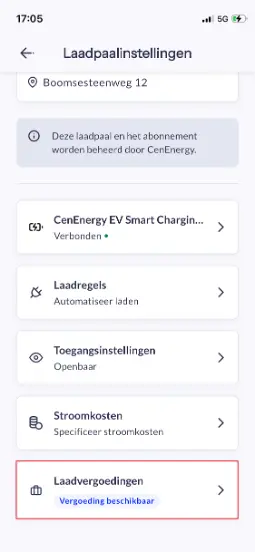
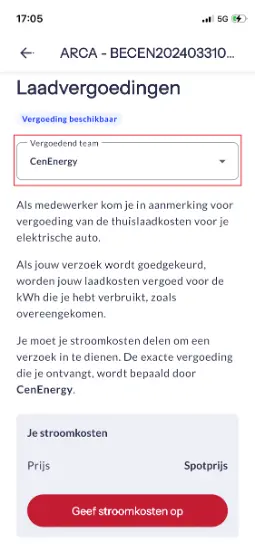
Open the mobile application and go to the team in which the home charging station is located*.
Open the settings of the home charging station, look for Charging reimbursements and select the Reimbursing team.
Then go through all steps and submit the request**.
*Typically, the name of this team is “first name last name (employer)”.
**Click here for more support with requesting charging reimbursements.
6. How do I transfer the reimbursed amount to my bank account?
Click Me in the bottom-right corner and open your team under Wallets and payments.
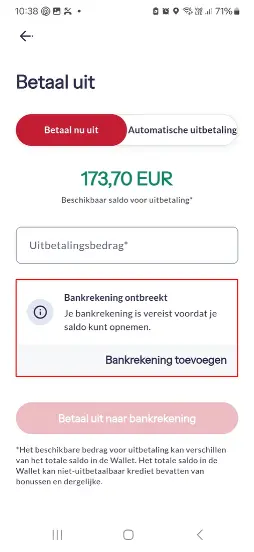
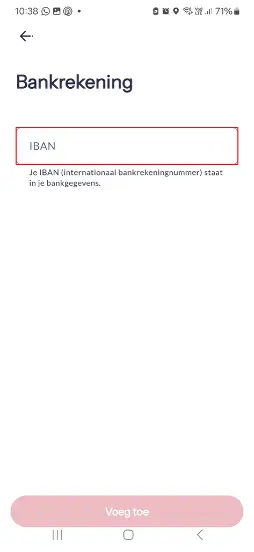
On the next screen, choose Payout and click Add bank account. Enter your account number and click Add at the bottom.
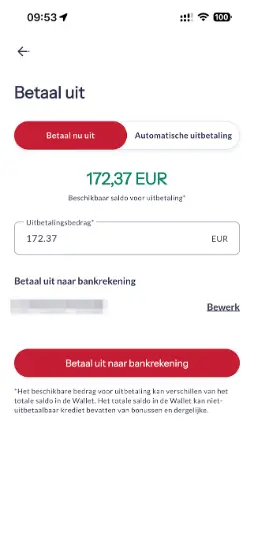
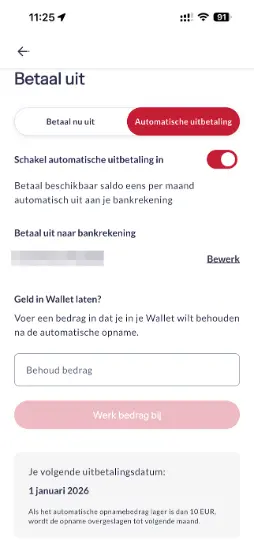
Choose Pay out now or Automatic payout and continue.
For Pay out now, enter the desired payout amount and click Pay out to bank account.
For Automatic payout, slide the toggle Enable automatic payout to the right.***
***Click here for more support on using your Wallet.
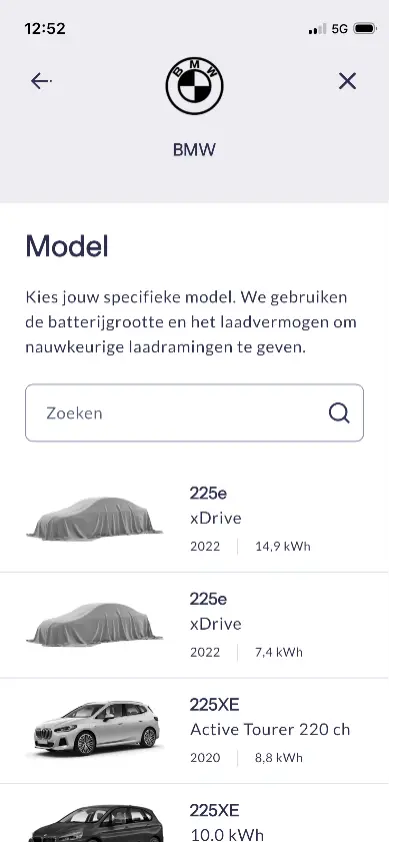
7. How do I link my vehicle?
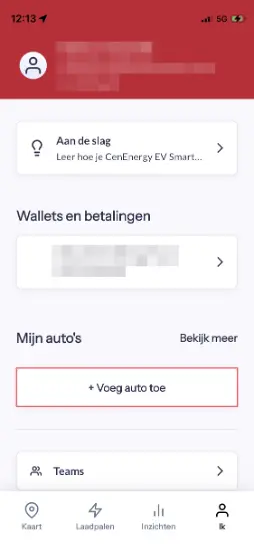
Click Me in the bottom-right corner and select Add car.
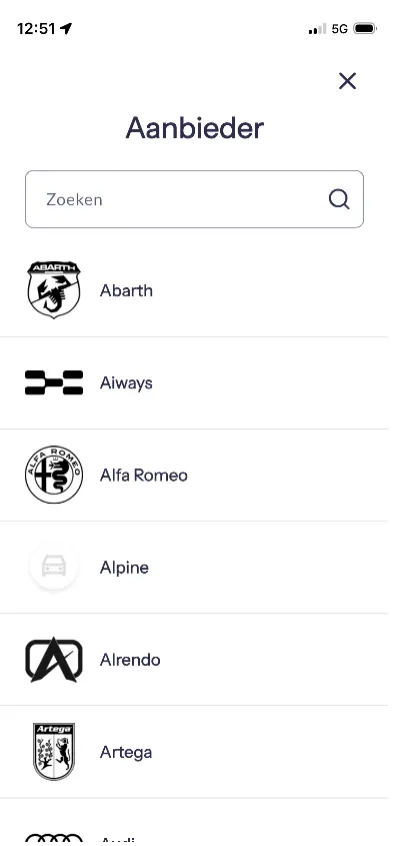
Search for the provider and model and complete the required steps.****
****Click here for more support on adding and integrating your vehicle.
8. How do I find a charging point?
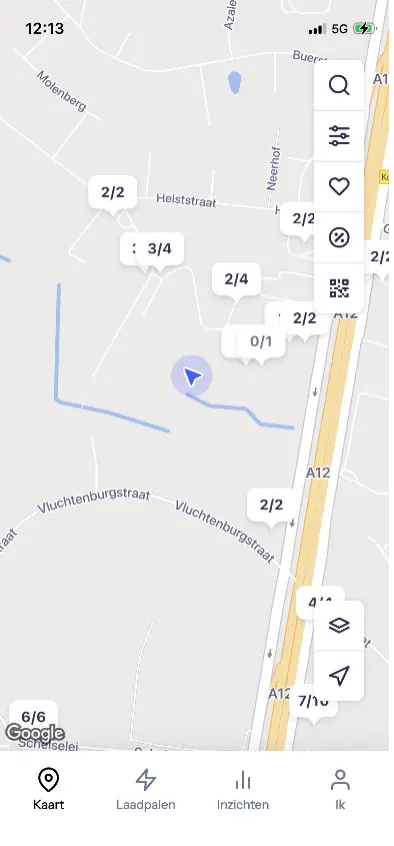
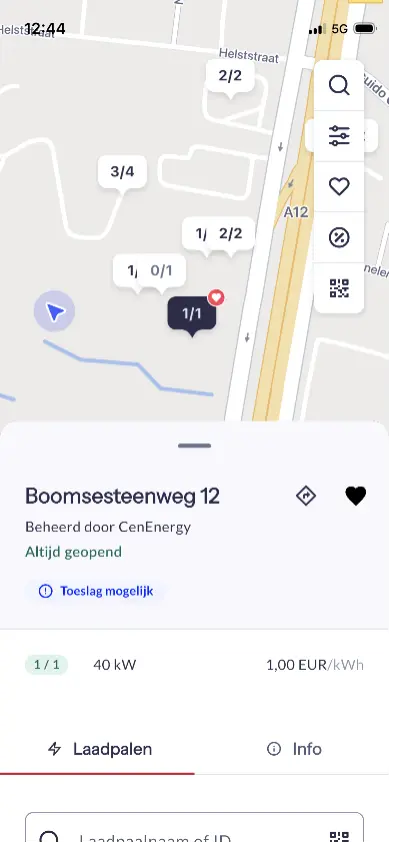
Click Map at the bottom and then select the desired charging location.
A list of charging points will appear at the bottom.
Use the icons at the top-right of the map to search, filter, view your favourites, redeem a discount code or scan a QR code.
9. How do I start a charging session?
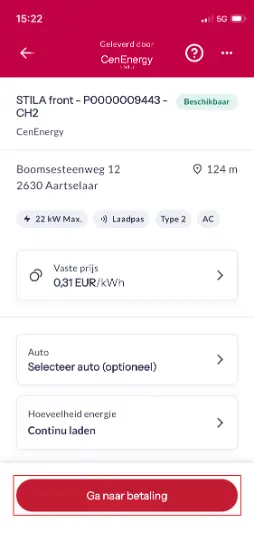
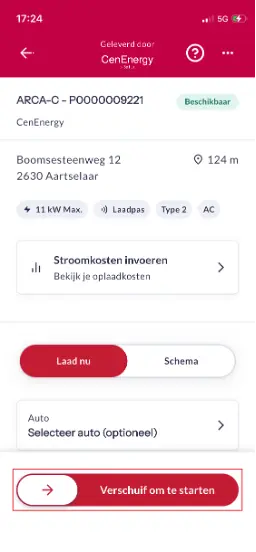
Select the charging point where you want to start a session and adjust the settings as desired.
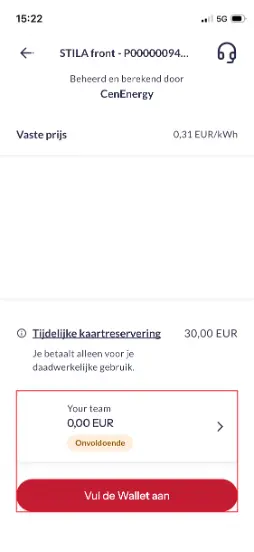
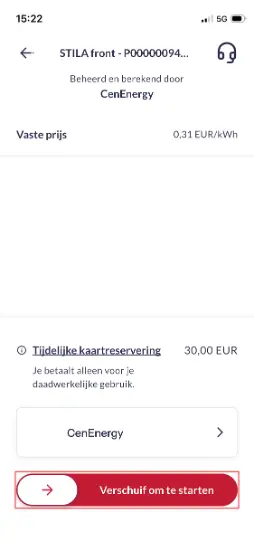
If it is a paid charging session, click Proceed to payment, choose your payment method or add one, and slide the white block on the Slide to start bar at the bottom to the right.
If it is a free charging session, simply slide the white block on the Slide to start bar at the bottom to the right.*****
*****Click here for more support on using public charging points.
10. How can I allow others to use my charging station?
This depends on who should be able to use your charging station.
For regular use, for example by your partner, a participation code can be shared.
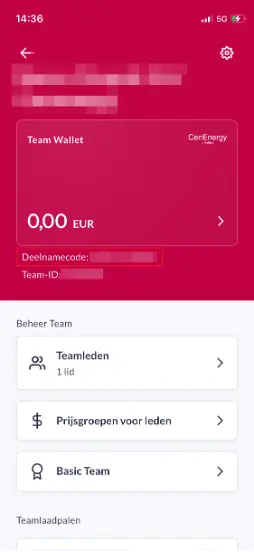
Click Me in the bottom-right corner, go to Teams and open the relevant team.
The participation code is shown below your Wallet balance.
Ask the person concerned to download the mobile application and refer them to these instructions to join using the participation code you shared.
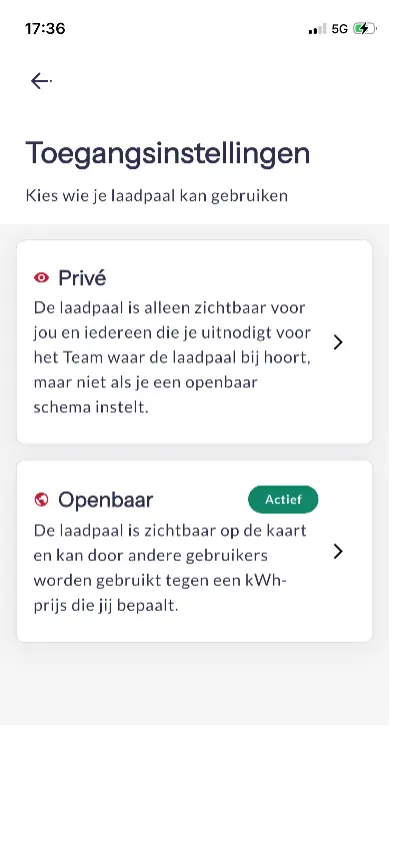
For occasional use, for example by visitors, the charging station can also be made publicly accessible.
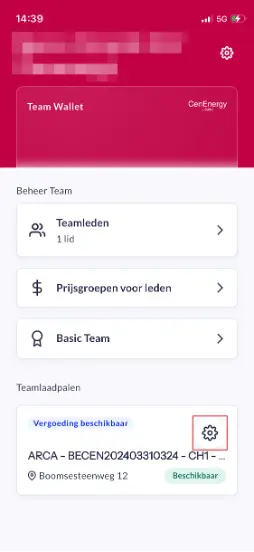
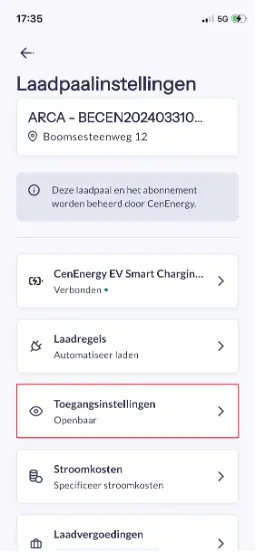
Go to your charging station and open the settings, then Access settings, Public, and once all settings are correct, click Set to Public.******
However, this is not intended to be used as a profit model.
To set a reasonable price, we refer you to MyMinfin.
******Click here for more support on making your charging point publicly accessible.