Getting started with Monta
Discover how to get started easily with our new charging platform.
Monta is an innovative platform offering many new possibilities, such as scheduling, starting and stopping charging sessions, tracking your balance, and using this balance for charging sessions. Below, we guide you through the main features to help you get started.
Do you still have questions? Feel free to contact us at migration@cenenergy.be
1. Which mobile application should I download?
Go to the Play Store (Android) or App Store (iOS) and download our new mobile application.
What is my Wallet?
Your Wallet shows the balance available in your Monta account. This balance consists of income from charging sessions, minus any transaction fees and costs for charging sessions at other charging stations.
You can check your current balance at any time in the CenEnergy app.
How do I transfer a refund to my bank account?
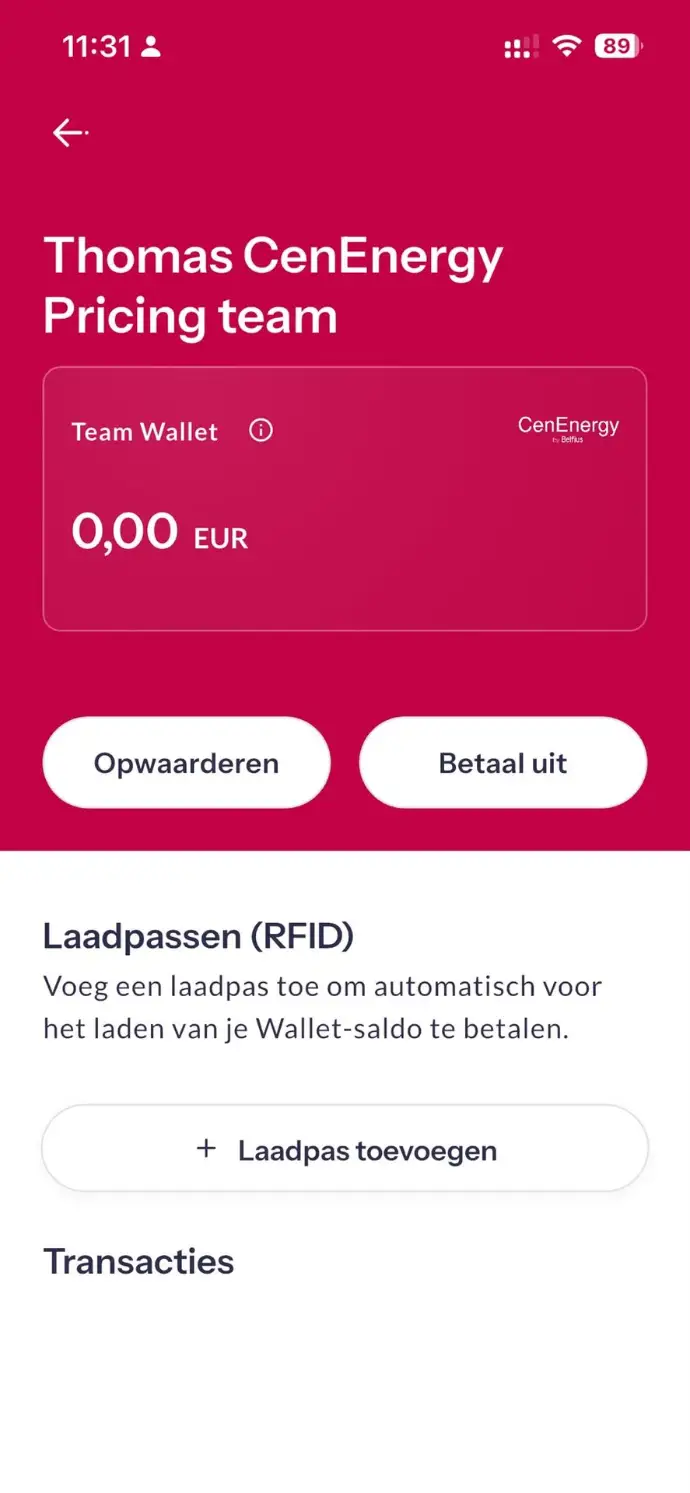
Click Me in the bottom-right corner and open your team under Wallets & payments.
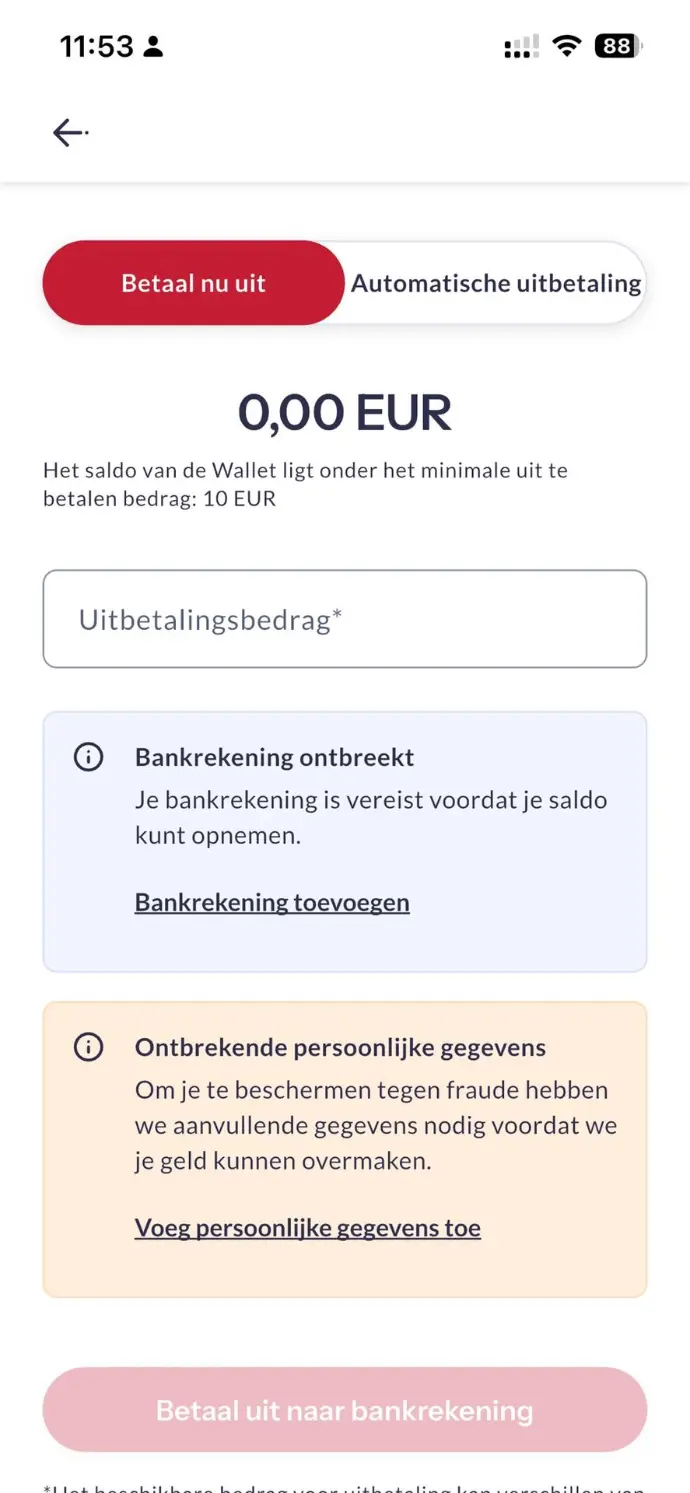
On the next screen, select Withdraw and then choose Withdraw now.
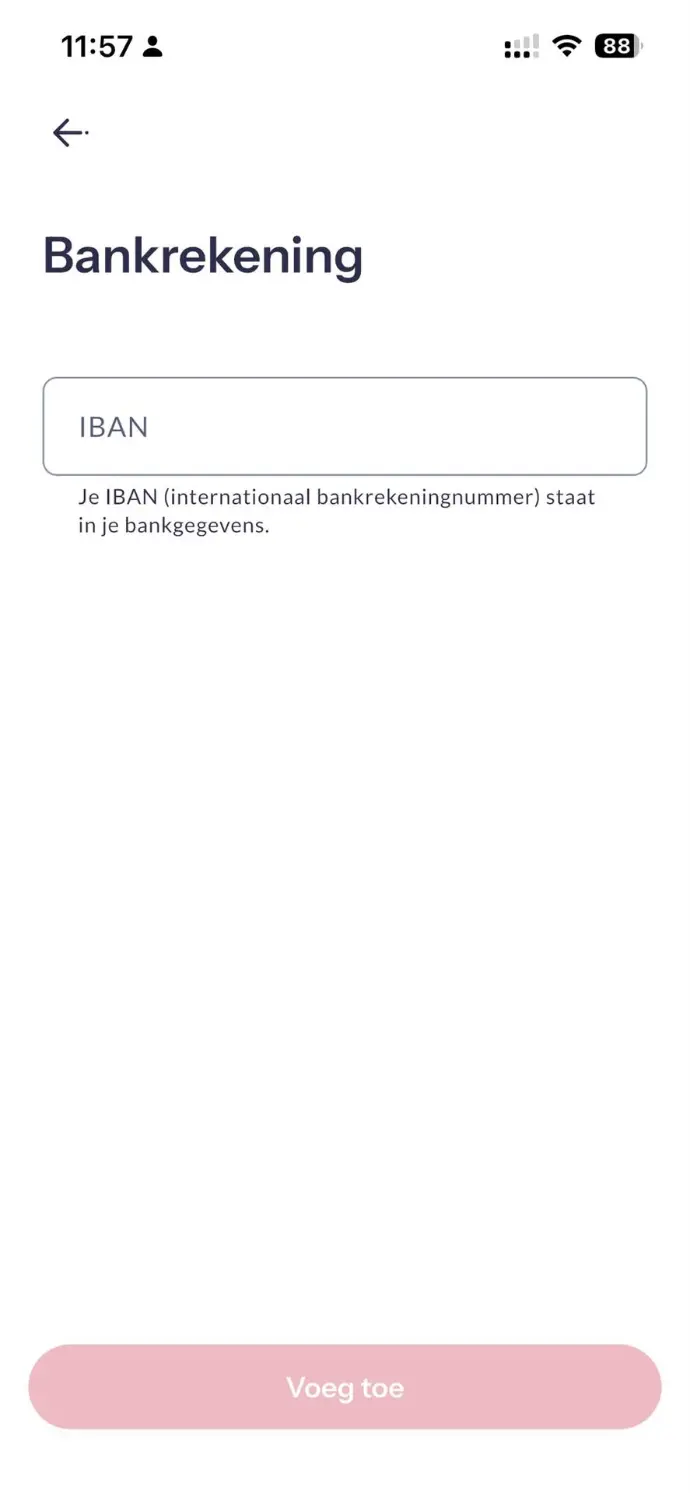
If you have not yet added a bank account, click Add bank account, enter your bank details and confirm at the bottom. It is also possible that some personal information is missing. In that case, a notification will appear in the app. Please complete the required information before continuing.
Then enter the amount you wish to withdraw and click Withdraw to bank account.
How do I enable automatic payouts?
Click Me in the bottom-right corner and open your team under Wallets & payments.
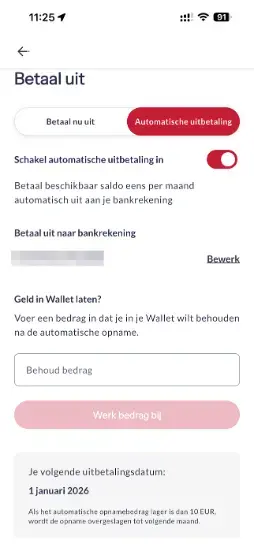
On the next screen, select Withdraw and then choose Auto withdraw.
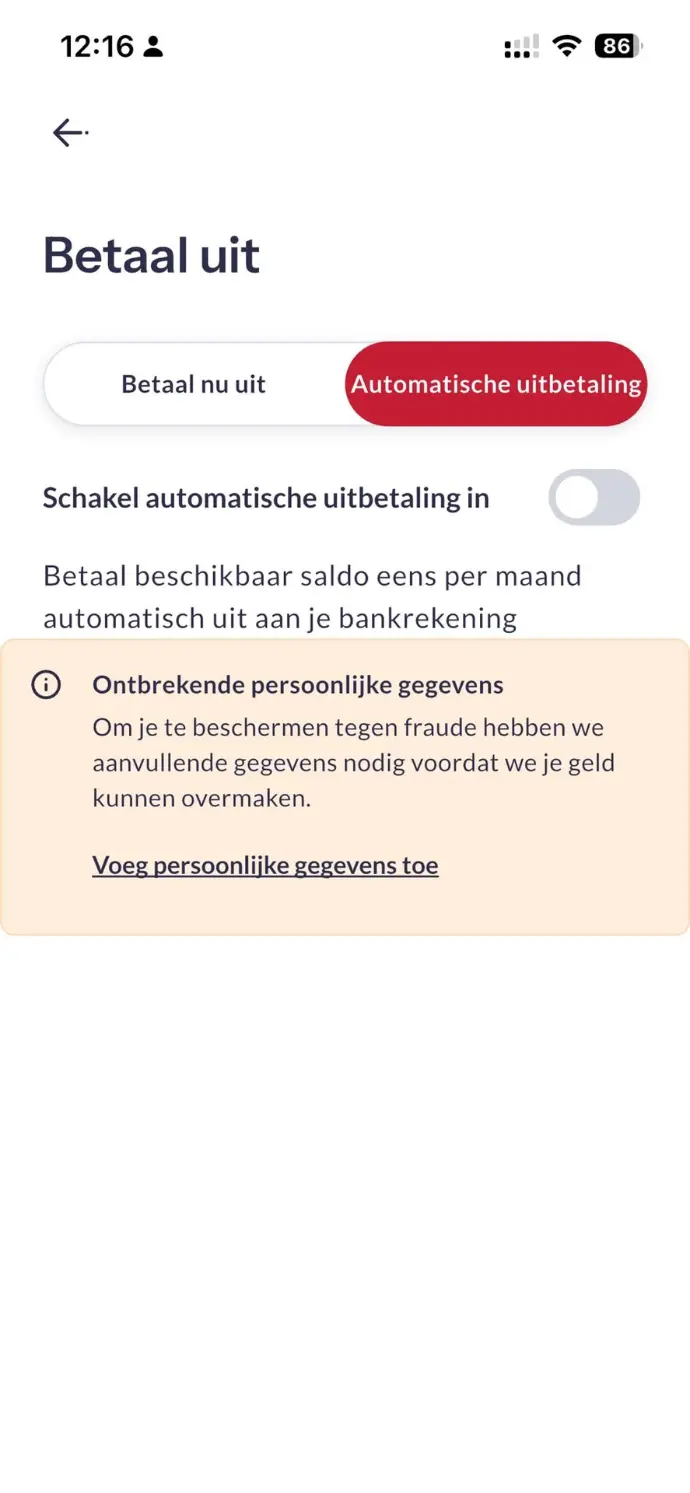
Check that your bank account has been added. It is also possible that some personal information is missing. If the app indicates this, click Add personal details and complete the required information first.
Then slide the toggle next to Enable auto withdraw to the right to activate automatic payouts.
Please note: when automatic payouts are enabled, you cannot use ‘Withdraw now’ at the same time.
How do I find a charging point?
Until the end of October, you will still need to use the old CenEnergy app for roaming transactions. The charging cards used for roaming are currently still linked to the old system.
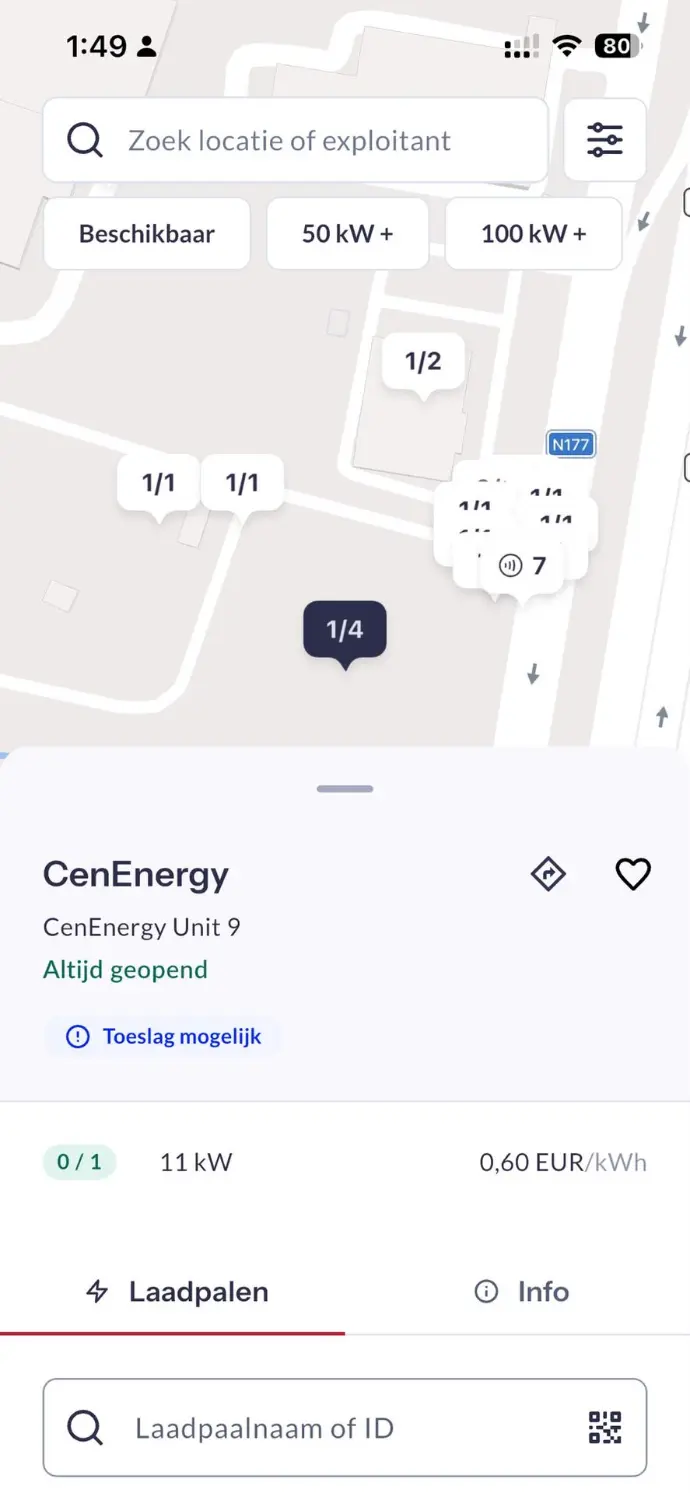
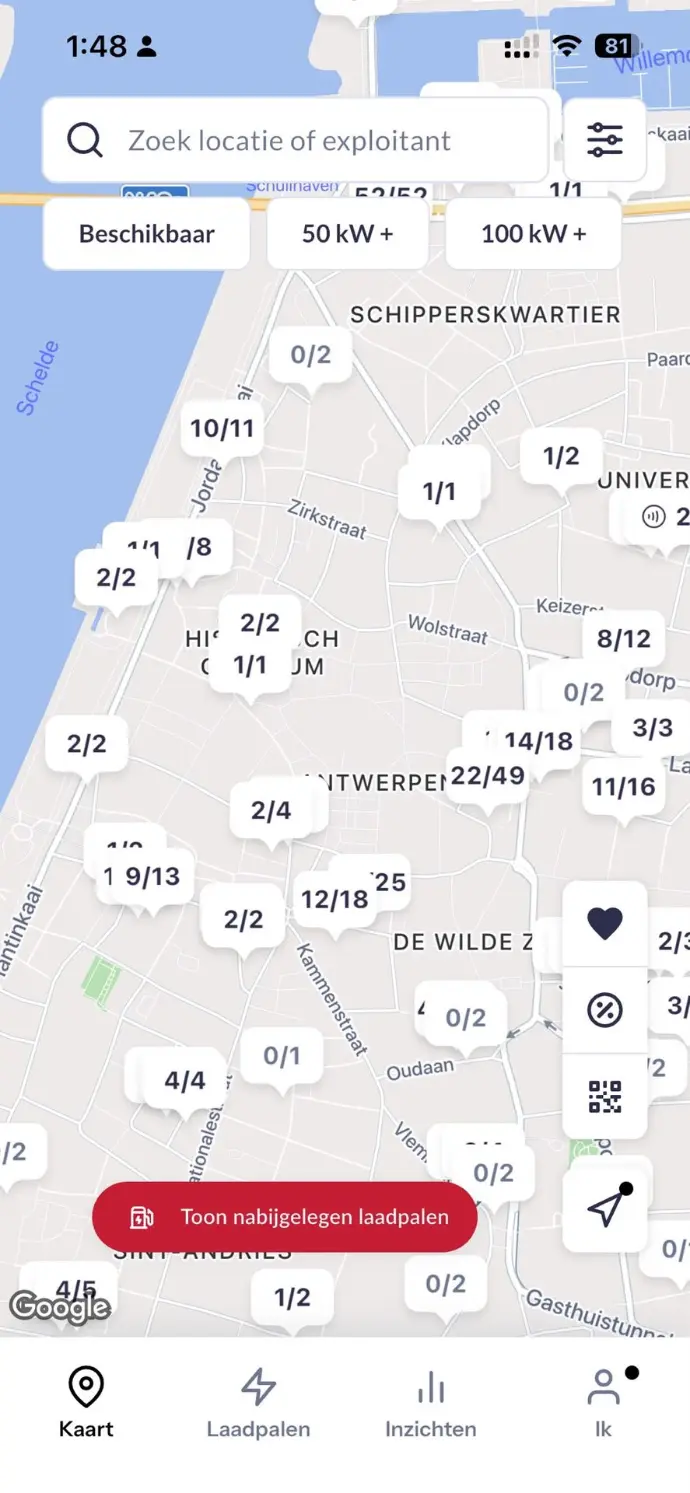
Tap Map at the bottom of the screen and select the desired charging location.
An overview of the available charging points at that location will appear at the bottom of the screen. Select the charging point you want to view more information about.
Use the icons in the top-right corner of the map to search, filter, view your favorites, redeem a discount code, or scan a QR code.
How do I start a charging session?
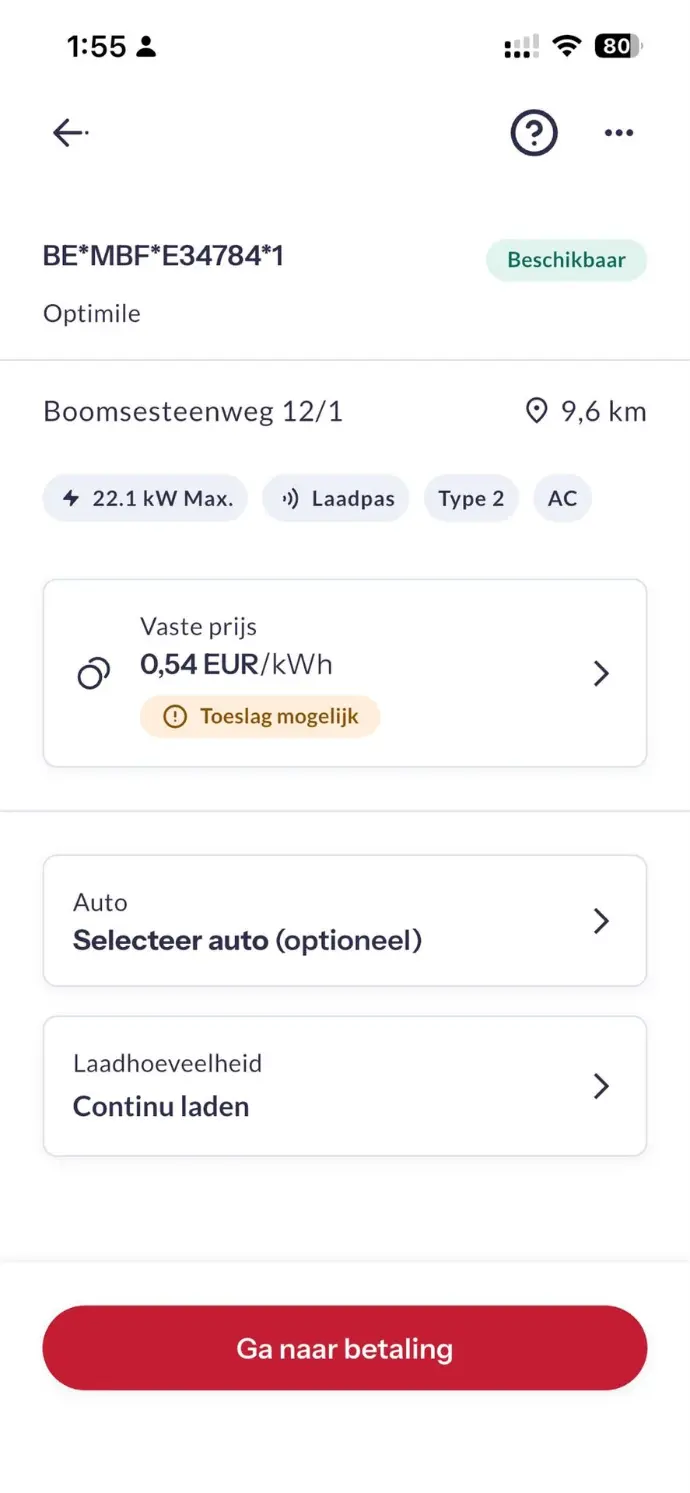
Select the charging point where you want to start a charging session and adjust the settings if needed.
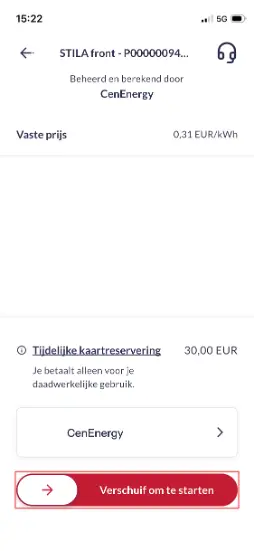
If it is a paid charging session, tap Go to payment, select a payment method or add a new one. Then slide the white button on the Slide to start bar at the bottom to the right.
If it is a free charging session, simply slide the white button on the Slide to start bar at the bottom to the right.
How do I add my car?
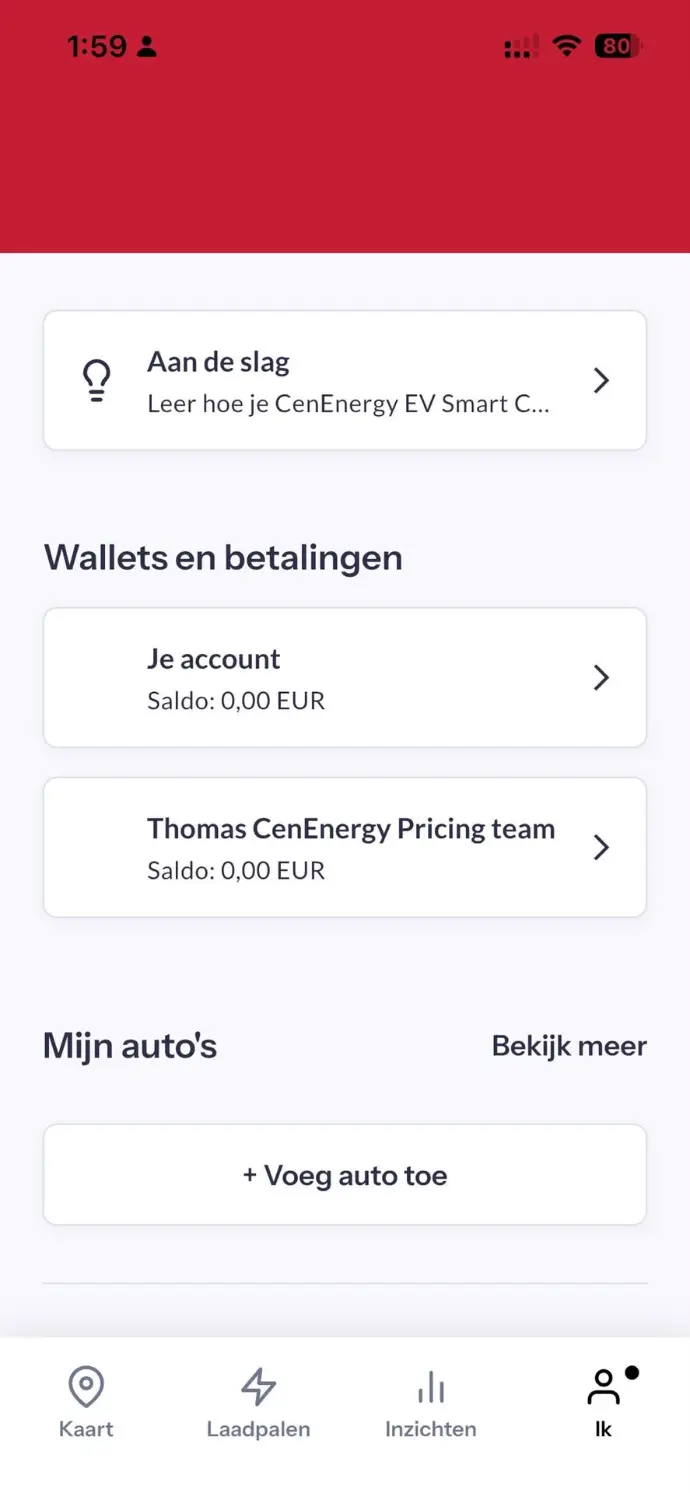
Tap Me in the bottom-right corner and select Add car.
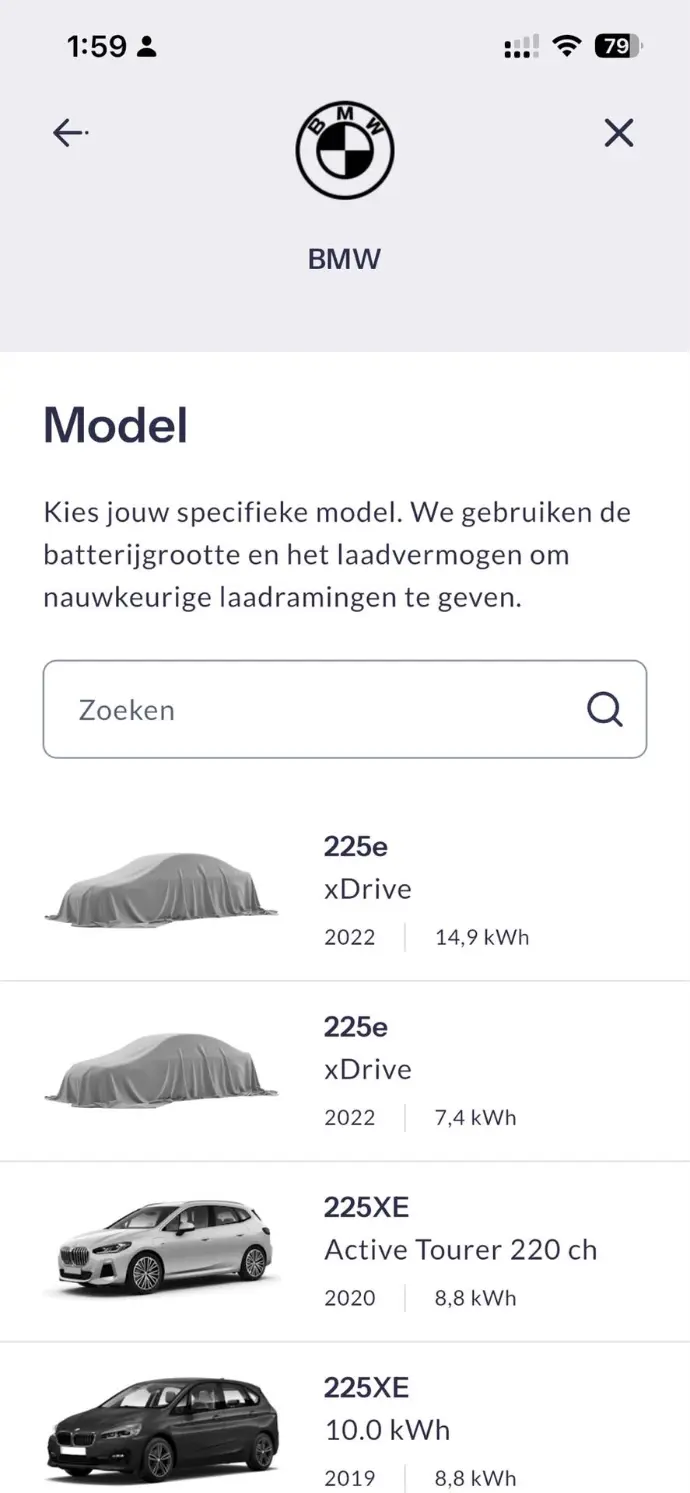
Then search for your car’s manufacturer and model, and follow the required steps to add your vehicle.